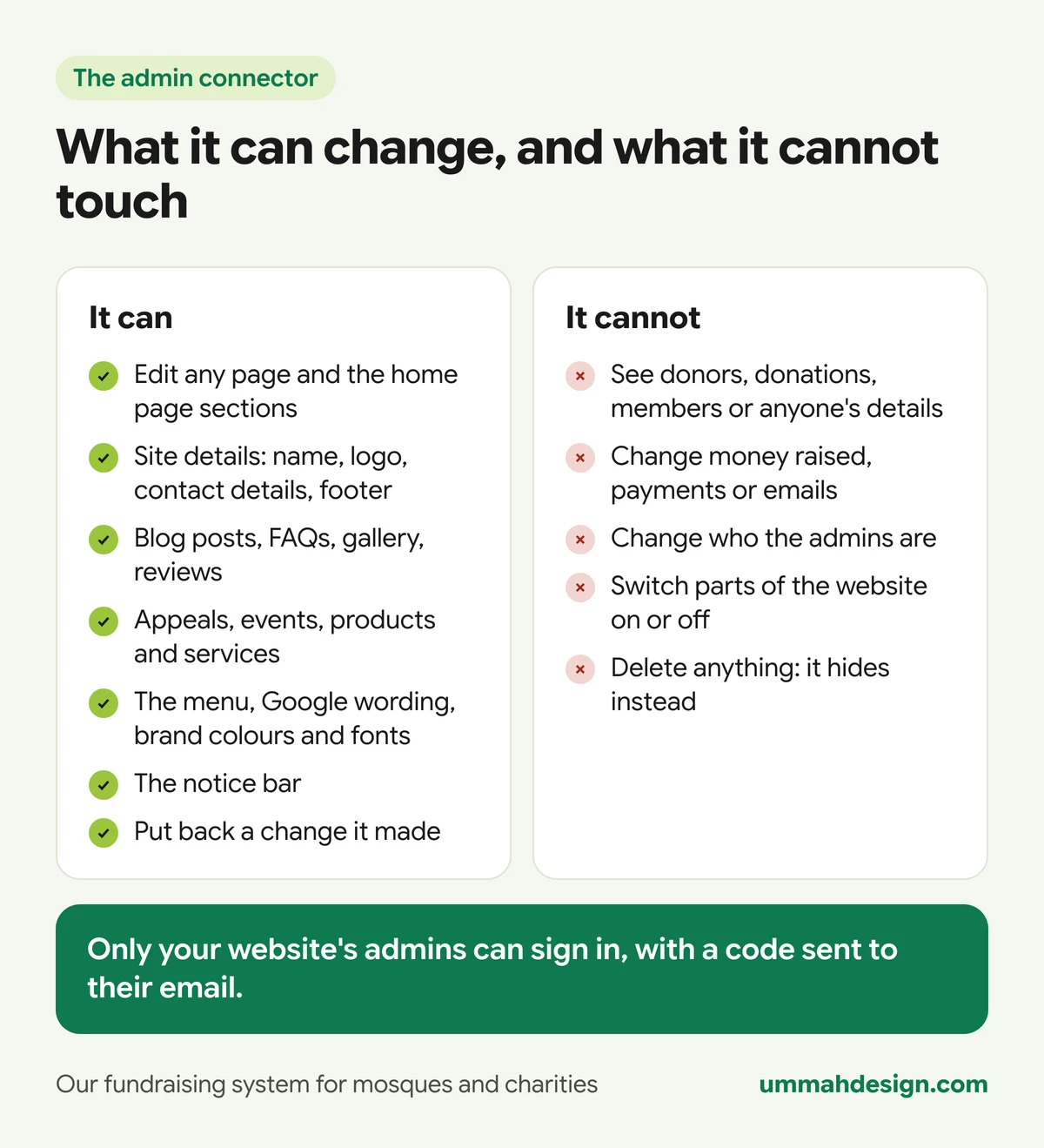
The admin connector lets your website admins change your charity or mosque website by asking Claude or ChatGPT: "change our office hours", "add the Jummah talk on Friday to our events", "put the winter appeal on the home page". Changes to pages are saved as drafts until you say "publish". Every published page keeps its history, so an earlier version can be brought back. It can't see any donor or personal data, can't touch payments, emails or who your admins are, and can't delete anything.
It's an add-on to our fundraising system for mosques and charities, switched on per charity by us. This article covers what you can ask it, how the drafts work, and the limits we built in.
What is the admin connector?
A connector is a secure link between an AI assistant and your system, built on an open standard called MCP. It gives the assistant a fixed list of things it may do, and nothing else. Our plain-English guide to MCP connectors explains the idea in more depth.
The admin connector's list is about your website's content. It sits beside the page editor, not instead of it. Both work on the same pages and the same drafts, so a change you asked for in Claude shows up in Admin > Pages as a draft, and a change made in the editor is what the assistant reads next time.
What can you ask it to change?
The connector has 26 tools, and the assistant chooses between them. In plain terms, they cover four areas.
Pages
- Change the words or pictures on any page: About, Contact, your own pages, and the site details (your name, logo, contact details, opening hours and footer).
- Work on the home page section by section: change a section, hide it, add a new one or change the order. Sections include the top banner, a row of numbers, a text block, your featured appeal, prayer times, latest news, latest videos and link buttons.
- Create a new page. It is created hidden until you say publish.
- See a page's history and bring back an earlier version.
Content
- Add or change FAQs, blog posts, gallery pictures, reviews, appeals, events, products and services, for the parts your website uses.
- A new blog post always starts as a draft.
- Reviews are only added from words a real person gave you. The assistant is told never to invent one.
Pictures
- Add a picture to your media library from a web address, ready to use on any page. It goes through the same resizing as an upload. Only use pictures you have the right to use.
Site setup
- Reorder the menu, rename an entry or leave one out.
- Change how pages appear on Google and when shared on social media.
- Change brand colours and fonts.
- Put up the notice bar across the top of every page, with an end date if you like: "Eid prayer: 7:30 and 9:00".
It doesn't yet cover prayer times, giving windows, fundraising pages or email templates. Those stay in the admin for now.
How do drafts and publishing work?
Pages are the heart of your website, so every page change is a draft first. The live website doesn't move until you say so.
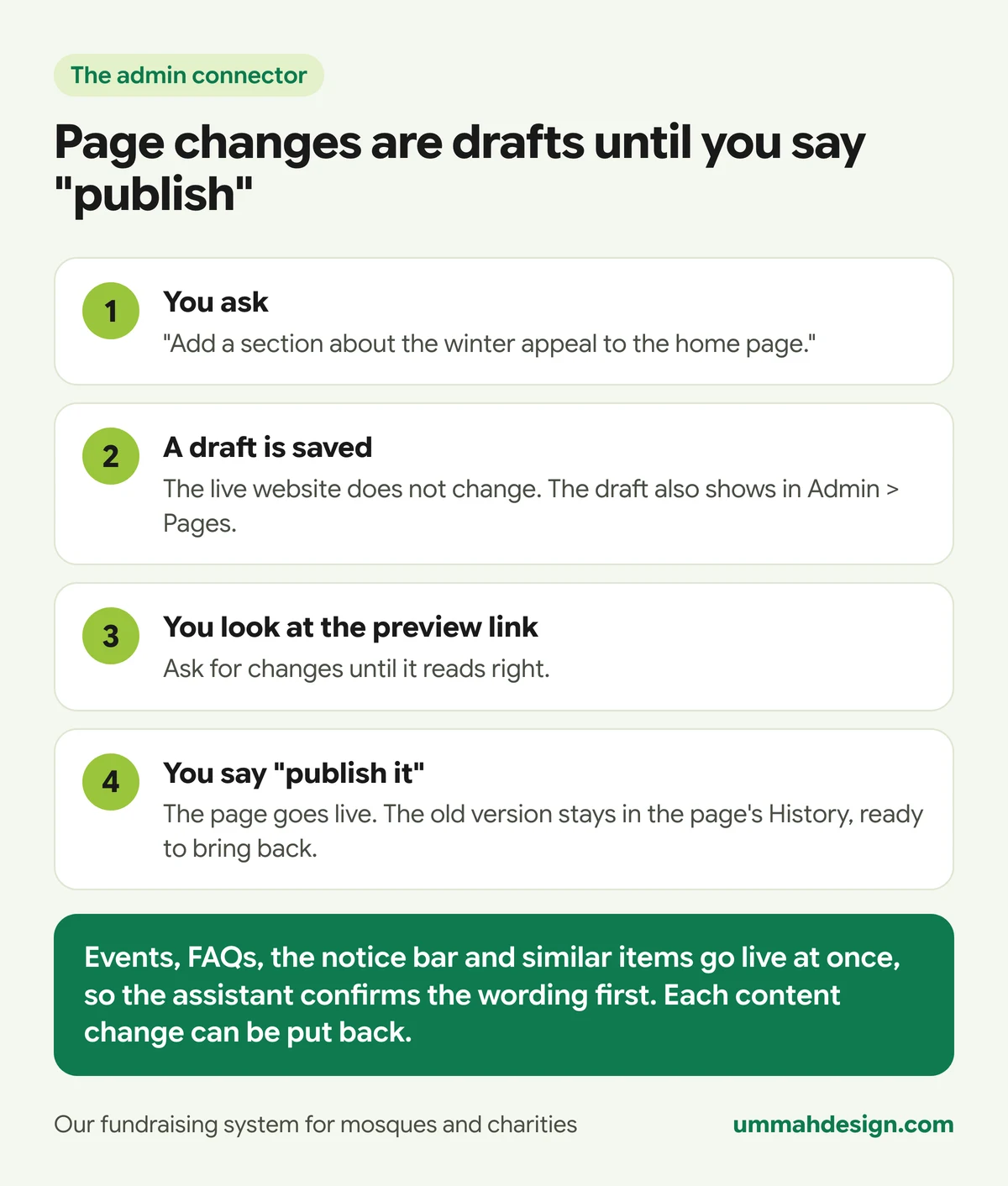
After saving a draft, the assistant tells you it's a draft and gives you a link to see it on the real page. It is instructed to publish only when you have clearly said so in that conversation. When you do, the page goes live and the version it replaced is kept in the page's History, marked with your email address and the note "Through the AI connector". If you change your mind later, ask it to bring the earlier version back. That comes back as a draft too, for you to check.
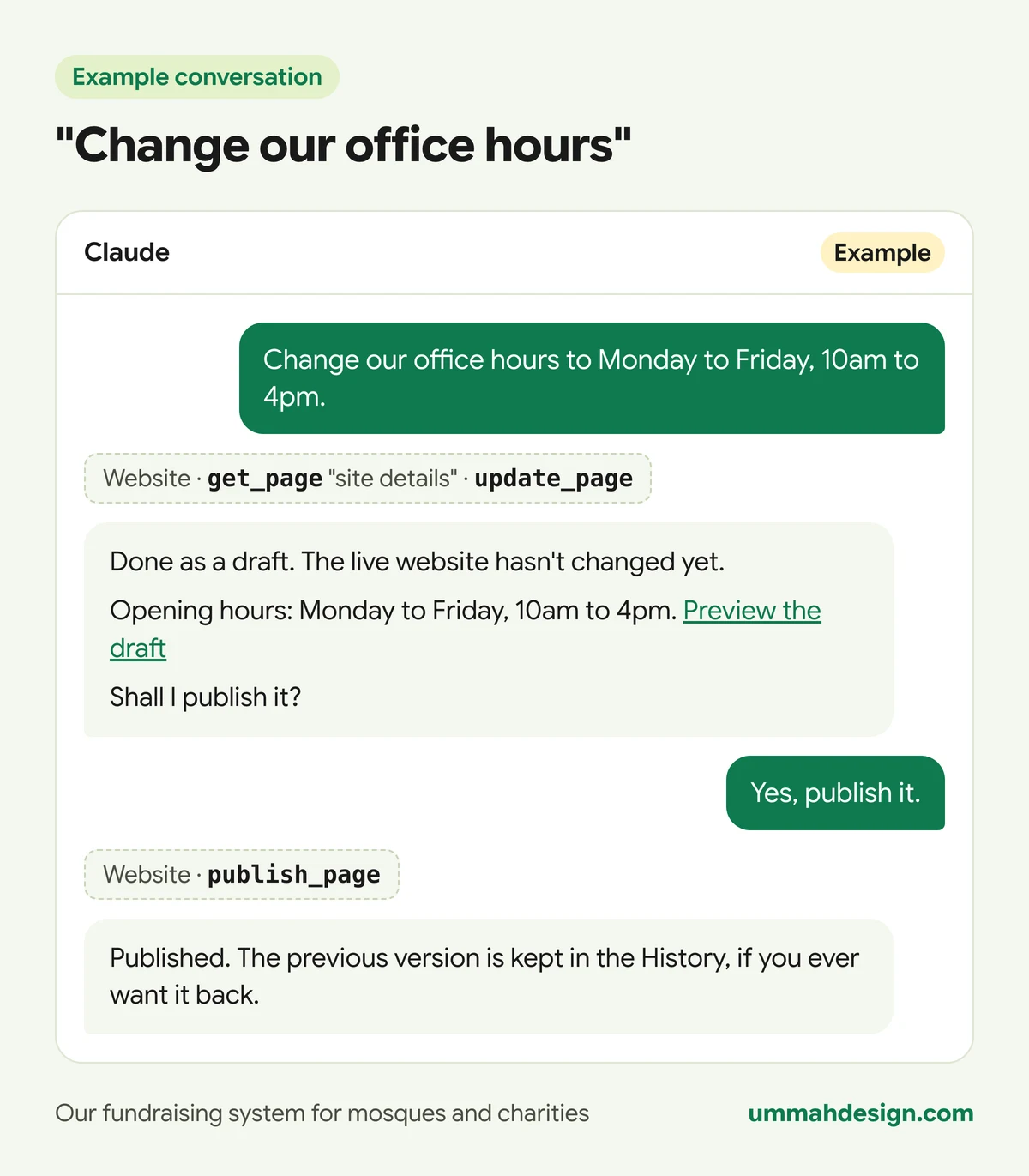
Here's what a short conversation looks like.
What goes live straight away?
Everything outside the pages has no draft: an FAQ, an event, a product, the menu, the Google wording, brand colours and the notice bar. Through the connector, these go live as soon as they are saved (except a new blog post, which starts as a draft). Two safeguards make that safe.
- The assistant confirms first. It is told to check wording, prices and dates with you before saving, and to tell you what went live. The connector also marks these tools as changes, so Claude and ChatGPT know to treat them with care.
- Every change can be put back. Each one is recorded with the item as it was before and after. Ask "put back the change to the Eid event" and the old words return. An item you added is taken off the website and kept, hidden, in the admin. The list of changes is also on Admin > Settings > Edit with AI.
Nothing is ever deleted through the connector. An item is hidden instead, and a blog post is returned to draft.
What can't it do?
We drew these lines in the system itself, so they hold whatever the assistant is asked.
- No personal data. It can't read donors, donations, orders, members, contacts or enquiries.
- No money or settings that matter. It can't change money raised on an appeal, payment settings, emails, or who your admins are, and it can't switch parts of the website on or off.
- Named fields only. For each kind of content there's a list of fields the assistant may read and change. Everything else is out of reach.
- Clean code only. Any text the assistant writes is cleaned of scripts, frames and forms before it's saved.
- Every call logged. Who asked, which tool ran and a short summary.
Who can use it, and how do they sign in?
Only your website's admins. Once we've switched it on, an admin opens Admin > Settings > Edit with AI, which shows the connector's address, who can sign in and the latest activity. Then:
- Copy your website's connector address.
- Add it to your assistant once. In Claude, open Connectors in the settings and add a custom connector. In ChatGPT, on the web, open Settings, then Apps and connectors, then Create.
- Sign in with the 6-digit code sent to your email.
Remove someone as an admin, or ask us to switch the connector off, and their access stops at once. Each sign-in is checked again on every request.
As of November 2026, Claude allows custom connectors on all its plans (Free accounts can add one), and ChatGPT offers them as a beta feature on paid plans, on the web. Which ChatGPT plans can make changes, rather than just read, has shifted during the year, so check OpenAI's help pages for your plan.
When is it better than the admin?
For small, urgent changes when you're away from a laptop. The talk after Jummah has moved to the hall. The office is closed on Monday. The Eid prayer times are confirmed. Typing one sentence on your phone is quicker than signing in, finding the right screen and remembering where the setting lives.
It's also good for wording. "Make the About page shorter and warmer" or "rewrite the volunteer section in plainer English" gives you a draft to react to, rather than a blank box.
For bigger jobs, such as laying out a new appeal page with photos, the page editor is still the better tool. Use whichever suits the moment: they share the same drafts.
Frequently asked questions
What if the assistant gets something wrong?
For a page, throw away the draft, or if it was published, bring back the earlier version from History. For anything else, ask it to put the change back, or look at the list on Edit with AI.
Can it also answer questions about donations?
No, on purpose. Fundraising figures are the job of the trustee connector, which is read only and shortens donor names. Keeping the two apart means the connector that can change your website can never see your donors.
Can it post to social media or send emails?
Not by itself. But because it lives in your own Claude or ChatGPT account, it works alongside other apps you've connected there, such as Gmail or Canva. We walk through six examples of the connectors working with other apps.
Is this the same as the AI writing help in the admin?
No. The admin has its own AI helpers for blog drafts, captions and child sponsorship updates, inside a monthly allowance. The admin connector is a paid add-on that uses your own Claude or ChatGPT account instead.
If you'd like to see it change a page from a phone in under a minute, book a demo of our fundraising system for charities and mosques. Bring a change you've been meaning to make.